Espresso Help
Everything Espresso does, explained short.
How to search, what every option does, and how to keep every disk you own one keystroke away, connected or not.
New here? Three steps.
Getting started- 1 Install Drag Espresso to Applications. It updates itself from then on.
- 2 Full Disk Access So protected folders show up too. Optional, recommended.
- 3 Choose your disks Your startup disk takes well under a minute. Search while it works.
Guide
Everything in Espresso Free, in the order you’ll meet it.
- Getting started Install Espresso, let it see every folder, pick your disks. Five minutes, most of them spent deciding which disks to add.
- Coming from Everything Used Everything by voidtools on Windows? Most of what your fingers know works as typed. Here is what carries over, and the few habits a Mac changes.
- Searching Type, and every matching file on every disk is already there. How words combine, what the options change, and how to keep the searches you repeat.
- The main window It works like a Finder window that already knows where everything is. The sidebar, the toolbar, columns, browsing, preview and tabs.
- Working with files Open, preview, copy, rename, tag, share and drag what you find, without a detour through Finder. And undo any of it, even tomorrow.
- The Shot A small search panel over any app, one keystroke away. Type, open, gone. Pressing ⌥Space is called pulling a shot.
- Disks and indexing How Espresso keeps a map of every disk, keeps it fresh while you work, and keeps it when the disk goes back in the drawer.
- Extended details Dimensions, durations and dates taken in Espresso Free; camera, lens, codecs, music tags and more with Pro. Searchable, sortable, and kept for disks in a drawer.
Espresso Pro
What Pro adds, and how to use each piece.
- Espresso Pro Espresso Free is free forever for personal use and isn’t a demo. Pro is for drawers full of disks and for Espresso as part of your work. One payment, every update, up to three Macs.
- Ask the Barista Describe what you’re looking for in your own words, in about 100 languages. Dates, sizes and places become filters; the rest is found by meaning, on your Mac.
- Inside files Find documents by the words they contain and photos by what they show. Read slowly in the background, entirely on your Mac, and kept for offline disks.
- Timeline What was added, changed and deleted since a date, on one disk or all of them. For “what did I do to that folder last week?”
- Automation Everything Espresso finds, outside its window. In Terminal, in Shortcuts, in Raycast and Alfred, and for AI assistants like Claude.
Reference
The exact details, when you need them.
- Search syntax Every operator, filter and search function, on one page. Type any of them in the search field, The Shot, the command line or Raycast.
- Shortcuts Every shortcut on one page. Espresso is built to be used without letting go of the keyboard.
- Settings Every option, tab by tab. Open them with Espresso › Settings… or ⌘,
- What’s new Every new roast of Espresso, newest first. Espresso updates itself, so you’re probably already on the latest one.
Help
Answers, fixes and what Espresso does with your data.
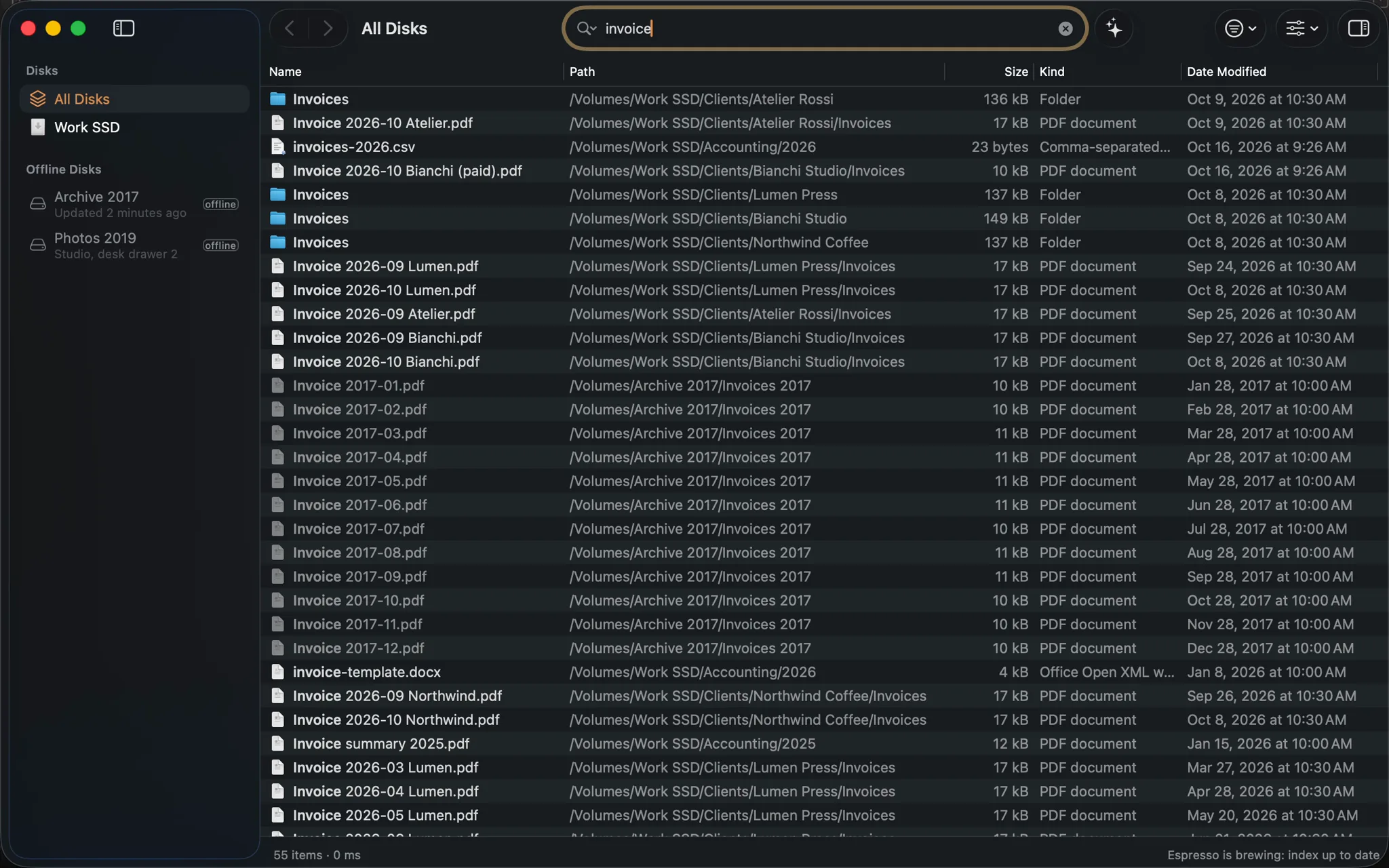
Try these in the search field.
invoice ext:pdf dm:thisyearthis year’s PDF invoicesoffline: rawraw photos on disks in a drawervideo: size:>1gbevery video over 1 GBdupe: ext:docxWord files with the same name