
Guide
Searching
Type, and every matching file on every disk is already there. How words combine, what the options change, and how to keep the searches you repeat.
Start typing in the search field at the top of the window, or anywhere in the window: when the results have the focus, typing goes straight to the search field. Results update on every keystroke.
By default Espresso looks for your text in file and folder names, ignoring case and
accents: cafe finds Café.png, REPORT finds annual report.pdf. The words that matched are
shown in bold in the Name column.
The status bar counts the results and times the search, for example 1,284 items · 8 ms. If
part of a search can’t be understood, such as size:lots or an unclosed <, Espresso
underlines it in the search field (hover to read why), says what’s wrong in the status bar, and
still runs the rest.
Combining words
| You type | Finds |
|---|---|
invoice 2026 | names containing both words |
jpg | png | either word |
report !draft | “report”, but not “draft” |
"annual report" | the exact phrase, space included |
IMG_*.heic | wildcards: the whole name must match (* any text, ? one character) |
projects/espresso | a slash searches the full path, not only the name |
^IMG · final$ | names starting / ending with the word |
src/**/*.{c,h} · test/ | path globs with alternatives · items inside a folder named “test” |
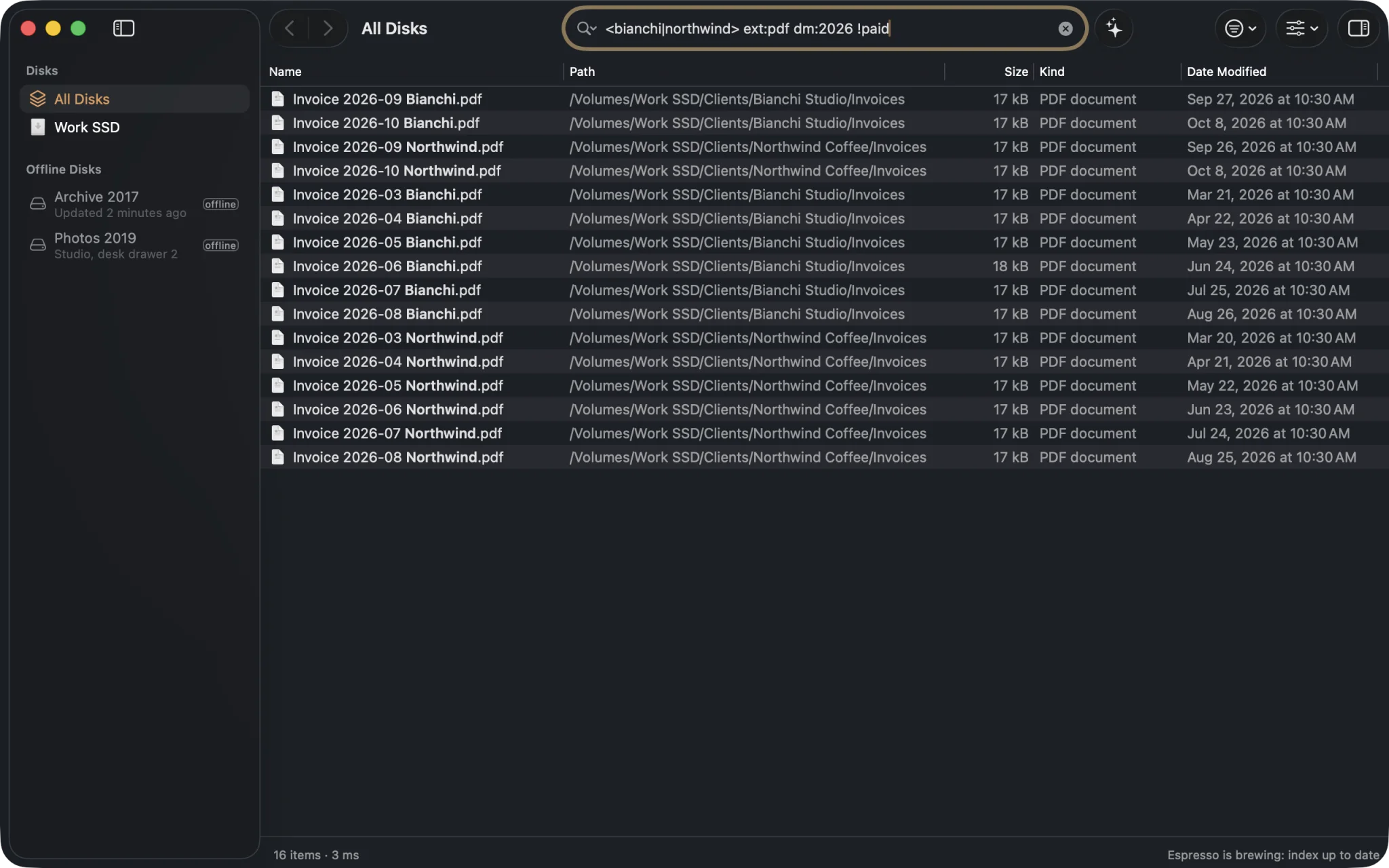
<bianchi|northwind> ext:pdf dm:2026 !paid: two clients, PDFs from this year, not yet paid.Sizes, dates, kinds, disks, tags, extended details and regular expressions are all in the Search syntax. The ones you’ll use most:
| Filter | Example |
|---|---|
| Extension | ext:pdf, ext:jpg;heic |
| Kind | pic:, video:, audio:, doc:, folder: |
| Size | size:>100mb, size:10kb..2mb |
| Modified | dm:today, dm:lastweek, dm:2026-03 |
| Where | infolder:~/Projects, disk:Backup, offline: |
Search options
Click Options (the sliders in the toolbar) or use View › Search Options:
| Option | What it does |
|---|---|
| Match Case | Report no longer matches report. |
| Match Whole Words | art matches “art.png” but not “smart.png”. |
| Match Path | Every word is searched in the full path, e.g. Documents invoice. |
| Ignore Diacritics | On by default: cafe matches café. Turn it off to tell them apart. |
| Forgive Typos | Words of five letters or more may have one mistake, eight or more two: presnetation finds “Presentation.key”. Off by default. ⌥⌘F |
| Best Matches First | Sort by relevance instead of name: names that start with your words, short names near the top of the disk and recent files first. On automatically with Forgive Typos. |
| Search Inside Files | Pro Each word also matches the text inside documents, code and photos. See Inside files. ⌥⌘I |
| Regular Expressions (Barista mode) | The whole search is one regular expression. ⌥⌘R |
| Hidden Files and Package Contents (Lungo) | Also search hidden files and the insides of apps and packages. ⌥⌘L |
| Show Hidden Files | Include hidden files, without package contents. ⇧⌘. |
Options apply to the current window. Defaults for new windows are in Settings › Search.
Blends: filter by kind
A Blend narrows the results to one kind of file. Pick one from the Blends button in the toolbar, from View › Blends, or with ⌘1 … ⌘9:
| Blend | Shows | |
|---|---|---|
| ⌘1 | Everything | no filter |
| ⌘2 | Audio | mp3, m4a, wav, flac, aiff… |
| ⌘3 | Video | mp4, mov, mkv, avi… |
| ⌘4 | Images | jpg, png, heic, raw formats, psd, svg… |
| ⌘5 | Documents | pdf, Pages, Word, Excel, Keynote, text, Markdown… |
| ⌘6 | Folders | folders only |
| ⌘7 | Archives | zip, dmg, rar, 7z, tar… |
| ⌘8 | Code | Swift, JavaScript, Python, C, HTML, CSS, JSON… |
| ⌘9 | Applications | apps and other executables |
A Blend combines with what you type: Images + holiday finds pictures named “holiday”.
Where Espresso looks
The sidebar decides:
- All Disks searches every indexed disk at once, connected or not.
- Select a disk to search only that one. With the search field empty, you browse its folders instead (see Browsing folders).
- While you browse a folder, typing searches inside that folder and its subfolders.
Your Usual: saved searches
Found a search you’ll need again, like “invoices from this year”? Choose File › Save Search… (⌘S) and give it a name. It appears in the sidebar under Your Usual, together with the Blend that was active.
Click a saved search to run it; typing then narrows its results. Right-click it to Edit… its name and search, or Delete it. You can edit them all in Settings › Search.
Past Orders: recent searches
Espresso remembers the searches you settle on. Click the magnifying glass at the left of the search field to see your Past Orders and run one again, or Clear Past Orders.
Macros
A macro is a short name for a search you type often. Add one in Settings › Search › Macros:
| Macro | Expands to |
|---|---|
projects | infolder:~/Projects !node_modules |
Then type projects: in any search, alone or with more words: projects: invoice. Text right
after the colon is added too: projects:invoice. Macros also work on the
command line, in Raycast, Alfred and AI assistants.
Duplicates (Double shot)
Type dupe: to see only items whose name appears more than once, or sizedupe: for files with
the same size. They combine with anything: dupe: ext:pdf, sizedupe: size:>100mb.
Searching by meaning
Can’t remember the name, only what the file was about? With Espresso Pro you can ask the barista in your own words, and search inside documents and photos.