Guide
Getting started
Install Espresso, let it see every folder, pick your disks. Five minutes, most of them spent deciding which disks to add.
Install
- Download Espresso from espressoformac.com and open the disk image.
- Drag Espresso to Applications.
- Open Espresso from Applications or Spotlight.
Espresso needs macOS 14 Sonoma or later and runs natively on Apple silicon and Intel Macs. It updates itself: when a new version is out, it offers to install it. You can change how in Settings › General.
Full Disk Access
macOS protects some folders: Mail, Messages, Safari, other apps’ data. To find files there, Espresso needs Full Disk Access. Without it Espresso still works, it just skips those folders, and macOS may ask you separately about Desktop, Documents, Downloads and removable drives.
- Open System Settings › Privacy & Security › Full Disk Access. The welcome screen has a button that takes you there.
- Turn on Espresso. If it isn’t in the list, click + and choose it from Applications.
- Come back to Espresso. It notices on its own.
Espresso indexes names, sizes and dates. Reading what’s inside files, and Ask the Barista, are part of Espresso Pro and stay off until you turn them on. Either way, nothing leaves your Mac.
A few folders belong to macOS itself, protected by System Integrity Protection or owned by system services. No app can open them, Finder included, so Espresso skips them without a word.
Choose your disks
On first launch, pick the disks to index. Your startup disk is already selected. Espresso grinds each disk once: on a typical Mac the startup disk takes well under a minute. You can search while it works, and results appear as files are found.
When you connect a disk Espresso hasn’t seen, a small banner asks whether to index it. You can also add or remove disks at any time in Settings › Disks.
Your first search
Type. There’s no Return to press: results update on every keystroke, from every indexed disk at once, including the ones you’ve unplugged.
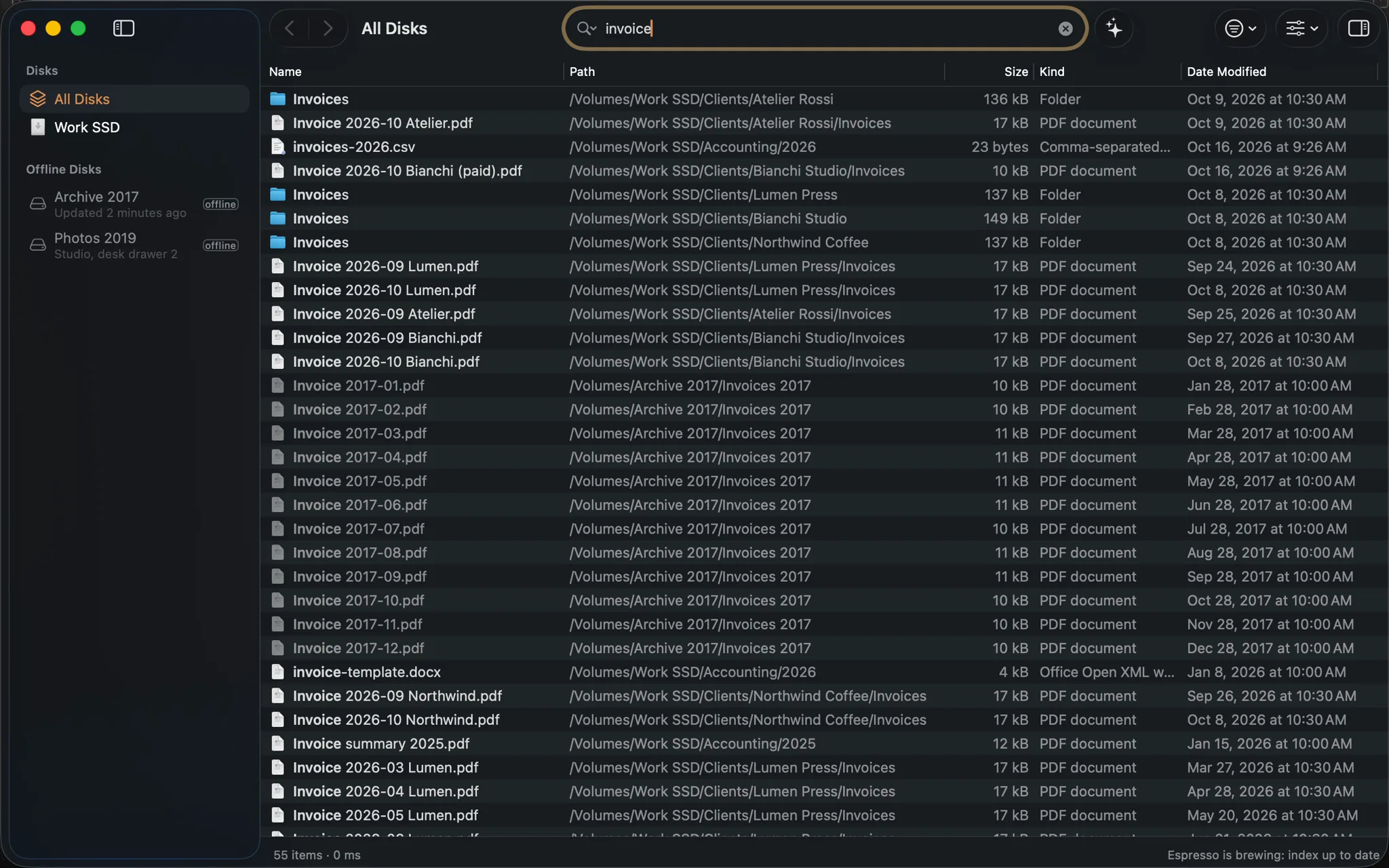
A few searches to get a feel for it:
| Type | To find |
|---|---|
invoice | everything with “invoice” in its name, on every disk |
invoice ext:pdf dm:thisyear | PDF invoices modified this year |
offline: raw | raw photos on disks that aren’t connected |
video: size:>1gb | every video over 1 GB |
Where to next
- Searching: combining words, search options, Blends, saved searches, macros.
- The main window: columns, browsing folders, preview, tabs.
- The Shot: search from any app with ⌥Space.
- Disks and indexing: offline disks, excluded folders, keeping the index fresh.