Espresso Pro
AutomationPro
Everything Espresso finds, outside its window. In Terminal, in Shortcuts, in Raycast and Alfred, and for AI assistants like Claude.
Pro · Automation is part of Espresso Pro. Set it up in Espresso › Settings › Automation.
Command line
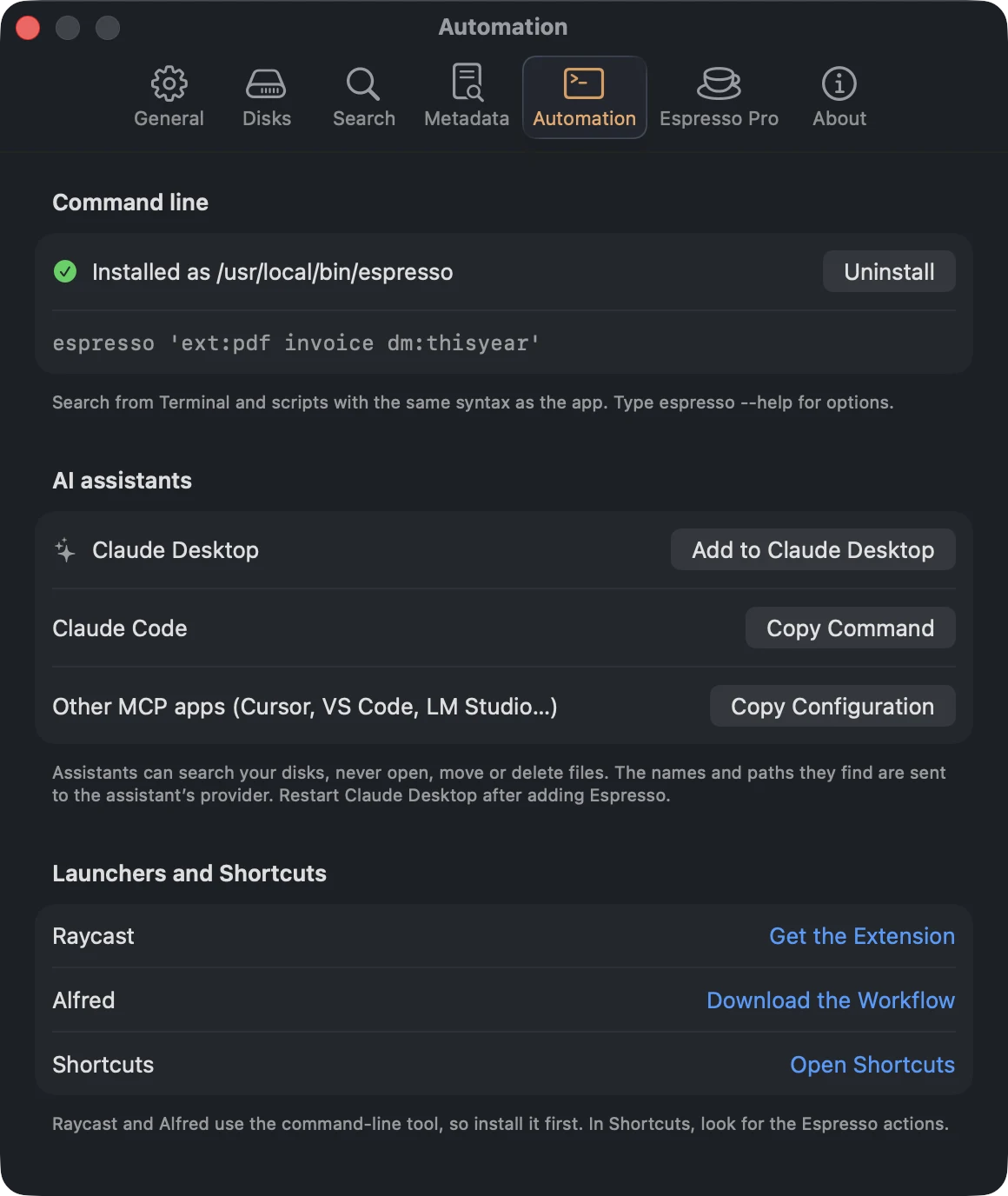
Click Install… next to Command line; macOS asks for your password the first time. The
tool is installed as /usr/local/bin/espresso. Then:
espresso 'ext:pdf invoice dm:thisyear'
espresso -n 20 -s size -r 'video: size:>1gb'       # the 20 largest videos over 1 GB
espresso -l 'offline: raw'                         # with size, date and disk
espresso --json 'camera:iphone gps:'               # JSON, with extended details
espresso ask 'PDF bills over 2 MB from last month' # Ask the Barista, in plain words
espresso saved                                     # your saved searches (Your Usual)
espresso disks                                     # every disk, connected or offline
espresso info ~/Documents/report.pdf
The query is exactly what you’d type in the app (search syntax). Put it in
single quotes so the shell leaves |, !, < and > alone. espresso --help lists every
option.
- Your macros work here too.
espresso askprints the search it ran (ext:pdf size:>2mb dm:lastmonth about:"bills"), so you can reuse it.about:searches by meaning while Espresso is open and Ask the Barista is set up; otherwise it matches words in names.
While Espresso is open, results are live. When it’s closed, the tool reads the saved indexes and says how old they are.
AI assistants
Espresso includes an MCP server, so assistants can search your disks for you: “where’s the contract I signed in March?”, “what’s on the blue backup disk?”.
- Claude Desktop: click Add to Claude Desktop, then restart Claude.
- Claude Code: click Copy Command and paste it in Terminal.
- Other apps (Cursor, VS Code, LM Studio…): click Copy Configuration and paste it into the app’s MCP settings.
Assistants can search and read details. They can never open, move or delete files. The names and paths they find are sent to the assistant’s provider, like anything else you share in a chat.
Raycast
Install the command-line tool first, then the Espresso extension from the Raycast Store (Get the Extension in Settings › Automation). It has four commands:
| Command | What it does |
|---|---|
| Search Files | Espresso’s search syntax as you type. The menu next to the search bar picks a Blend; ⌘D shows details (size, dates, dimensions, camera, codecs, tags…). Works as a fallback command. |
| Ask the Barista | A question in plain words; the section title shows the search it became. |
| Saved Searches | Your Usual, ready to run. |
| Disks | Connected and offline disks, with items, capacity and where offline disks are kept. Search This Disk searches only that one. |
Actions: open, Show in Finder, Quick Look (⌘Y), Open With, copy the path, the name or the file, Show in Espresso (⌘⇧E), Open Search in Espresso (⌘⌥E), Sort Results (⌘⌥S). The extension’s preferences set the number of results, typo tolerance, hidden files and the tool’s path. Files on disconnected disks are listed too, with the disk to connect.
Alfred
Requires the Alfred Powerpack and the command-line tool. Download the workflow from Settings › Automation and double-click it.
| Type | To |
|---|---|
esp and a search | search with Espresso’s syntax: esp ext:pdf invoice |
esp alone | see your saved searches; ⇥ or ↩ runs one |
esa and a question | Ask the Barista: esa photos of the beach from last summer |
↩ opens the file, ⌘↩ shows it in Finder, ⌥↩ copies the path, ⌃↩ shows it in Espresso; ⇧ is Quick Look and ⌘L Large Type. When there are more matches than Alfred lists, the last row opens them all in Espresso. Configure Workflow… in Alfred changes both keywords and the number of results.
Shortcuts
In the Shortcuts app, search for Espresso:
- Search Files with Espresso returns the matching files on connected disks, ready for other
actions. For example: move every
ext:heic dm:lastmonthto a folder. - Search in Espresso opens a window with the search.